# Itens das notas fiscais

<span style="font-size: 11pt; font-family: Arial,sans-serif; color: #000000; background-color: transparent; font-weight: 400; font-style: normal; font-variant: normal; text-decoration: none; vertical-align: baseline; white-space: pre-wrap;">Este relatório tem como função a melhor visualização de resultados comparativos entre itens presentes em notas de vendas. A </span><span style="font-weight: 400; color: #000000;">tela analítica por lote vai buscar os produtos faturados e totais agrupando por lote e nota fiscal, e</span><span style="font-weight: 400; color: #000000;">nquanto o relatório sintético por produto vai mostrar os produtos faturados agrupados pelo produto, independente do lote ou da NFe de venda em que eles estão</span>

<span style="font-size: 11pt; font-family: Arial,sans-serif; color: #000000; background-color: transparent; font-weight: 400; font-style: normal; font-variant: normal; text-decoration: none; vertical-align: baseline; white-space: pre-wrap;">Para gerar um relatório analítico por lote basta seguir:</span>

<span style="font-size: 11pt; font-family: Arial,sans-serif; color: #000000; background-color: transparent; font-weight: 400; font-style: normal; font-variant: normal; text-decoration: none; vertical-align: baseline; white-space: pre-wrap;">1. Menu Financeiro &gt; Relatórios &gt; Itens das notas fiscais</span>

<span style="font-size: 11pt; font-family: Arial,sans-serif; color: #000000; background-color: transparent; font-weight: 400; font-style: normal; font-variant: normal; text-decoration: none; vertical-align: baseline; white-space: pre-wrap;"><span style="border: none; display: inline-block; overflow: hidden; width: 264px; height: 358px;">![](https://lh7-us.googleusercontent.com/zKAJpl7hTkfPBRE0clowUJnhzACulB53dN8G5qNSHWY60JUqKzsQQSeH5xrnpxkp5ihJdvCwhRDz_u_VzZPgIO4pWw6tzSt-revzhWntRpdzrmILobhEM1VFBdRx_4Kzy5BTJRXnyLTay1kshgQ5XaY)</span></span>

<span style="font-size: 11pt; font-family: Arial,sans-serif; color: #000000; background-color: transparent; font-weight: 400; font-style: normal; font-variant: normal; text-decoration: none; vertical-align: baseline; white-space: pre-wrap;">2. Localize “Relatório analítico por lote” no menu superior</span>

<span style="font-size: 11pt; font-family: Arial,sans-serif; color: #000000; background-color: transparent; font-weight: 400; font-style: normal; font-variant: normal; text-decoration: none; vertical-align: baseline; white-space: pre-wrap;"><span style="border: none; display: inline-block; overflow: hidden; width: 210px; height: 83px;">![](https://lh7-us.googleusercontent.com/31VoIoD1zV_7smBMnxndLsSE6AdDv4aPW9CzuFglmi_sJgXj446R2W8KQxEZrAlYOKDMFtLNpjsLg0VCYGkhq5zFwblVs_hpsKey21LTNKaoN6JvV1SL0i4_7Swh-4aQkThiIXayO76U6nKv6YFuMsY)</span></span>

<span style="font-size: 11pt; font-family: Arial,sans-serif; color: #000000; background-color: transparent; font-weight: 400; font-style: normal; font-variant: normal; text-decoration: none; vertical-align: baseline; white-space: pre-wrap;">3. Utilize os filtros disponíveis para ajudar na busca dos resultados, principalmente o filtro de cliente, produto e data.</span>

<span style="font-size: 11pt; font-family: Arial,sans-serif; color: #000000; background-color: transparent; font-weight: 400; font-style: normal; font-variant: normal; text-decoration: none; vertical-align: baseline; white-space: pre-wrap;"><span style="border: none; display: inline-block; overflow: hidden; width: 602px; height: 184px;">![](https://lh7-us.googleusercontent.com/08WO5XKDVNwJVArmsKQVa9zjS5HZYOGU21TXgrGEAnTz4SfGZreEHj2U3t2fuPm7LoSLkKydB2LtHctjv8j637GMgcBqL6sEzd9BTNdzcJrE7I3sQUSB9pGzUt0A890pS0R9ROumuTv8s5uAqXABGFY)</span></span>

<span style="font-size: 11pt; font-family: Arial,sans-serif; color: #000000; background-color: transparent; font-weight: 400; font-style: normal; font-variant: normal; text-decoration: none; vertical-align: baseline; white-space: pre-wrap;">4. Ao verificar os resultados vemos que são separados de acordo com as colunas selecionadas previamente. No exemplo abaixo selecionamos as colunas: nota de venda, data de emissão, cliente, data da cirurgia, referência, lote e descrição do produto, fabricante, CFOP, quantidade do produto, ICMS, IPI, PIS, Cofins, valor unitário e valor do desconto, além do total do valor da venda.</span>

<span style="font-size: 11pt; font-family: Arial,sans-serif; color: #000000; background-color: transparent; font-weight: 400; font-style: normal; font-variant: normal; text-decoration: none; vertical-align: baseline; white-space: pre-wrap;"><span style="border: none; display: inline-block; overflow: hidden; width: 602px; height: 68px;">![](https://lh7-us.googleusercontent.com/Ol6M9lItiCV1c3kpISMu_rMuu7ko1U38_gqLHtuAc-kXrdxyHc4Dot5k9zJy6Qc2rZHos-qRsbSlI3FSV0Tr6h4BU7MVIWwbVd3IESr3otvWI_ZCxc22kL8oXCEHOXKRqQfEmAEhtT6vPOE01b97l4g)</span></span>

<span style="font-size: 11pt; font-family: Arial,sans-serif; color: #000000; background-color: transparent; font-weight: 400; font-style: normal; font-variant: normal; text-decoration: none; vertical-align: baseline; white-space: pre-wrap;">5. Você pode emitir o documento para comparação tanto em PDF, podendo imprimir todos os resultados ou apenas os selecionados, e também em Excel.</span>

<span style="font-size: 11pt; font-family: Arial,sans-serif; color: #000000; background-color: transparent; font-weight: 400; font-style: normal; font-variant: normal; text-decoration: none; vertical-align: baseline; white-space: pre-wrap;"><span style="border: none; display: inline-block; overflow: hidden; width: 300px; height: 55px;">![](https://lh7-us.googleusercontent.com/uZDMCqVs_IghUsP6DcOkV7UANPXMmGxm0vBXRKYDURLPD3rzYIAfwxOk95s5gIi_98OVC0R7Bng-yHiESFsLYIT3rszo0KCiI5AmjBUGA5ixV_wvkEJXAptdSAK2eqX6aBxEQuDNlvcZYwtSaOO15sA)</span></span><span style="font-size: 11pt; font-family: Arial,sans-serif; color: #000000; background-color: transparent; font-weight: 400; font-style: normal; font-variant: normal; text-decoration: none; vertical-align: baseline; white-space: pre-wrap;"><span style="border: none; display: inline-block; overflow: hidden; width: 300px; height: 55px;">![](https://lh7-us.googleusercontent.com/Buz2I8Kbc5mcF9rdyGV6Myjqtv_cyjmFdhaNvykl0D4ZUXqxpXCv-pR_xSHEvK9z6czjqH9jZRJ8rN4D7hy6T7duoXwBkKue1qmr7tD_p8TEHQ4I9eHAyq4hYk63s2A8F0F1fgTnRiQiVszUGKs3jq0)</span></span>

Para gerar um relatório sintético por produto basta:

1\. Localizar Financeiro &gt; Relatórios &gt; Itens das notas fiscais &gt; no menu superior "Relatório sintético por produto"

[![image-1705956543813.png](https://wiki.v2saude.com.br/uploads/images/gallery/2024-01/scaled-1680-/image-1705956543813.png)](https://wiki.v2saude.com.br/uploads/images/gallery/2024-01/image-1705956543813.png)

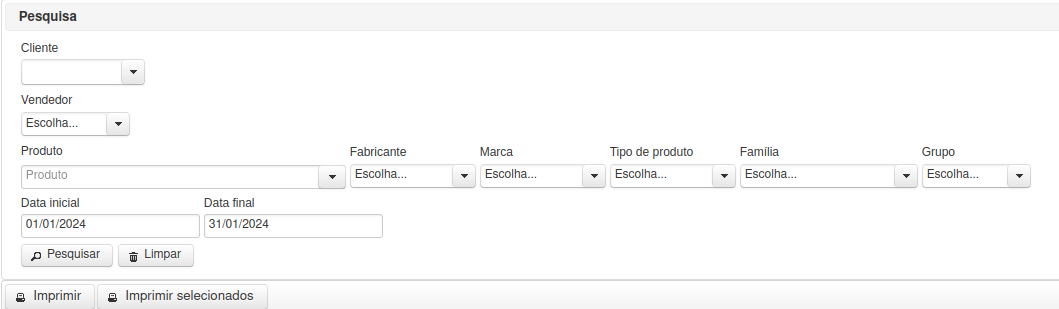
2\. Utilize os filtros disponíveis para melhor busca dos resultados

[![image-1705956679066.png](https://wiki.v2saude.com.br/uploads/images/gallery/2024-01/scaled-1680-/image-1705956679066.png)](https://wiki.v2saude.com.br/uploads/images/gallery/2024-01/image-1705956679066.png)
3\. Ao verificar os resultados vemos as colunas: Referência, descrição, fabricante e quantidade do produto, além de Custo médio, Custo médio total, Preço de venda médio e Preço de venda total. Essas colunas visam a comparação independente de NFe de venda vinculada ao produto.

[![image-1705956805381.png](https://wiki.v2saude.com.br/uploads/images/gallery/2024-01/scaled-1680-/image-1705956805381.png)](https://wiki.v2saude.com.br/uploads/images/gallery/2024-01/image-1705956805381.png)

4\. Assim como o outro relatório podemos gerar impressão por PDF de todos os itens ou somente os selecionados e arquivo Excel.